
The Dusklight graphics backend is the rendering path that connects the application to your GPU and display system. When Dusklight reports that it failed to initialize any graphics backend, do not start by deleting saves or installing random files. Record the application release, operating system, GPU, monitor, and the first error, then test the clean build with one supported renderer at a time.
A black screen, a crash before the menu, and slow rendering can share a graphics cause, but they are not proof of the same failure. A game that works in a visible window but not fullscreen points to a different boundary than a process that cannot create a graphics device at all. Keeping those cases separate makes the next test meaningful.
This guide covers graphics-backend initialization, renderer selection, driver and platform checks, resolution and performance settings, and a rollback path. It does not provide game data, a universal GPU guarantee, or a replacement for the current official release notes.
- First test
- Clean build with one renderer
- Record
- Release, GPU, OS, backend, first error
- Preferred boundary
- D3D12, Vulkan, or Metal when supported
- Safe recovery
- Windowed mode and last known-good profile
- Game data
- Not included or hosted
What this Dusklight graphics backend guide fixes
Use this page when Dusklight cannot create a graphics device, reports that no backend initialized, shows a black surface before the menu, or becomes unstable after a driver, display, or renderer change. The task is to identify the first failing layer and restore a repeatable launch. It is not a general download page and it is not a list of guaranteed settings for every GPU.
Begin with the same release and user-data profile that produced the error. Keep your own supported game data, saves, configuration, and modifications separate while testing. If the clean application launches and only a texture pack or mod fails, move to the existing customization guides instead of changing the graphics backend again.
- Write down the baselineRecord the Dusklight version, platform, CPU architecture, GPU, monitor, display mode, and first visible symptom.
- Remove one outside layerClose overlays, wrappers, capture tools, and mods for the first comparison without deleting user data.
- Start in a visible windowUse windowed output when possible so a failed fullscreen surface does not hide the real state.
- Change one backend variableTest a supported renderer or driver path once, wait for the result, and keep the previous profile available.
Read Dusklight graphics settings before changing them
Graphics settings have different jobs. A backend or graphics API determines how the application talks to the GPU. Internal resolution changes the amount of rendering work. Texture quality and replacement files change resource memory. V-sync, frame limits, and scaling affect presentation or pacing. When several of these change together, a later improvement cannot tell you which change mattered.
The official settings source is a useful boundary, but it does not make every option equally available on every platform. Treat the labels exposed by the build you are running as the source of truth. Note the old value before changing it, and prefer a setting that can be restored from a clean profile rather than editing unrelated configuration files by guesswork.
| Setting family | What it changes | Safe first question |
|---|---|---|
| Graphics backend | The rendering API or device path used to create the graphics surface | Does the current GPU and driver expose the supported API? |
| Internal resolution | The amount of scene work rendered before presentation | Does the clean backend launch at the default value? |
| Texture and replacement options | Resource size, replacement loading, and memory pressure | Does the clean build work before any custom files are enabled? |
| Fullscreen, scaling, and frame pacing | How the result is presented on the monitor | Does windowed mode work with the same backend and scene? |
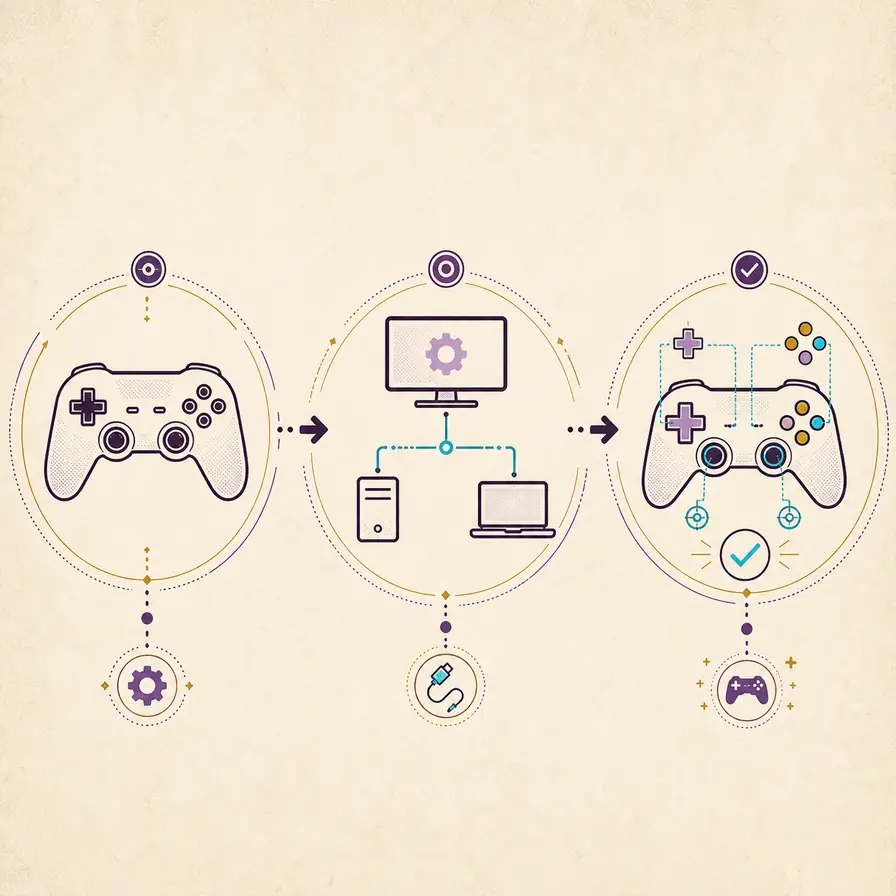
Fix “failed to initialize any graphics backend”
The error means Dusklight did not complete a usable connection to a graphics backend. It does not identify the exact cause by itself. Common boundaries include an unsupported or disabled API, an outdated or broken driver, a remote-desktop or overlay layer, the wrong architecture, a stale configuration, or a platform package that cannot access the display. Start with the smallest clean test that can distinguish those causes.
First verify that the release matches the operating system and processor architecture, then update or reinstall the GPU driver from the hardware vendor when the driver itself is suspect. Use the official project requirements and release notes for supported API guidance. Do not treat a community post that names a renderer as a universal fix; a backend that works on one GPU, driver, or desktop session can fail on another.
- Confirm the release and architectureCheck that the downloaded build matches the operating system and CPU architecture before diagnosing the renderer.
- Remove display wrappersTest directly without remote desktop, capture hooks, overlays, compatibility layers, or a second launcher.
- Check the graphics driverUse the vendor driver information and record the version; avoid changing the renderer and driver in the same test.
- Try one supported APIChoose the API exposed by the current build and hardware, then launch in a visible window and wait for the result.
- Keep the failing evidenceSave the first error, backend name, platform, and clean-test result before trying a different path.
Choose a backend for NVIDIA, AMD, and integrated graphics
There is no honest single answer to which graphics backend every Dusklight user should choose. The correct choice depends on the API supported by the operating system, the GPU driver, the current application build, the window system, and sometimes the desktop session. For an NVIDIA card, use the driver control panel and the official Dusklight requirements as evidence, then compare one preferred API with a clean baseline. Do not infer support from a different emulator or from an old Dusk tutorial.
D3D12, Vulkan, and Metal are useful names to record when they are exposed by the platform, while fallback paths can have different limits. A backend that starts but renders a black scene is not a successful result. Check the menu, a repeatable gameplay scene, input, saving, and a normal exit before keeping the setting.
| Situation | Evidence to collect | Next safe action |
|---|---|---|
| NVIDIA on Windows | GPU model, driver version, API choice, windowed result | Test one supported API, then compare the same scene before changing resolution |
| AMD or integrated GPU | Driver package, power mode, architecture, and first error | Use the native driver path and keep a lower default workload for the first launch |
| Linux or Steam Deck | Vulkan driver, compositor, Desktop/Gaming Mode, and package permissions | Test the native build in a visible window before adding a Steam shortcut or overlay |
| Apple or mobile | Metal/Vulkan exposure, package architecture, sandbox or display permission | Follow the platform build guidance and do not copy a desktop configuration path |
Tune resolution and performance after launch works
Only tune performance after the clean graphics backend launches and renders a repeatable scene. Start with the default internal resolution, then change one workload variable. Raising resolution can increase GPU time and memory pressure; lowering it may improve frame pacing but cannot repair a backend that never initialized. Keep the driver, API, monitor refresh rate, and scene constant while comparing.
A useful comparison records more than an average frame rate. Note stutter, shader compilation, missing textures, input delay, fan noise, memory pressure, and whether the same menu and save cycle still work. If a texture pack, mod, or overlay is present, remove it for the baseline before judging a graphics setting.
- Use the same scene, display mode, backend, and refresh rate for before-and-after checks.
- Raise or lower internal resolution once, then wait for shaders and compare the same action.
- Keep texture replacement and mod testing separate from the first performance comparison.
- Record frame pacing and visible artifacts, not only a single counter value.
- Restore the last known-good value when a change causes a crash, black surface, or unreadable UI.
Use a clean test, rollback, and useful issue report
A clean test is a controlled comparison, not a demand to erase your setup. Keep a dated copy of saves and settings, close Dusklight, and quarantine a changed configuration or mod instead of deleting it. Launch the same release with the same supported game data, the same scene, and one graphics choice. If the baseline works, reintroduce the newest change only after recording the result.
If no backend works, report the boundary instead of claiming that a random renderer is broken. Include the release, OS and architecture, GPU and driver, display server or desktop session, backend names attempted, windowed/fullscreen result, first error, and whether a clean profile changes the outcome. Leave out game dumps, keys, saves, or copyrighted files.
- Close the applicationDo not replace a driver, configuration, or mod while Dusklight is still writing logs or reading the data folder.
- Preserve the evidenceCopy logs and settings to a dated folder and keep the last known-good profile separate.
- Repeat the same sceneUse the same menu, gameplay action, save, reload, and normal exit for each backend comparison.
- Restore the baselineReturn to the last working backend or windowed mode before testing another independent variable.
- Write a bounded reportShare hardware, software, backend, first error, and clean-test results without uploading game data.
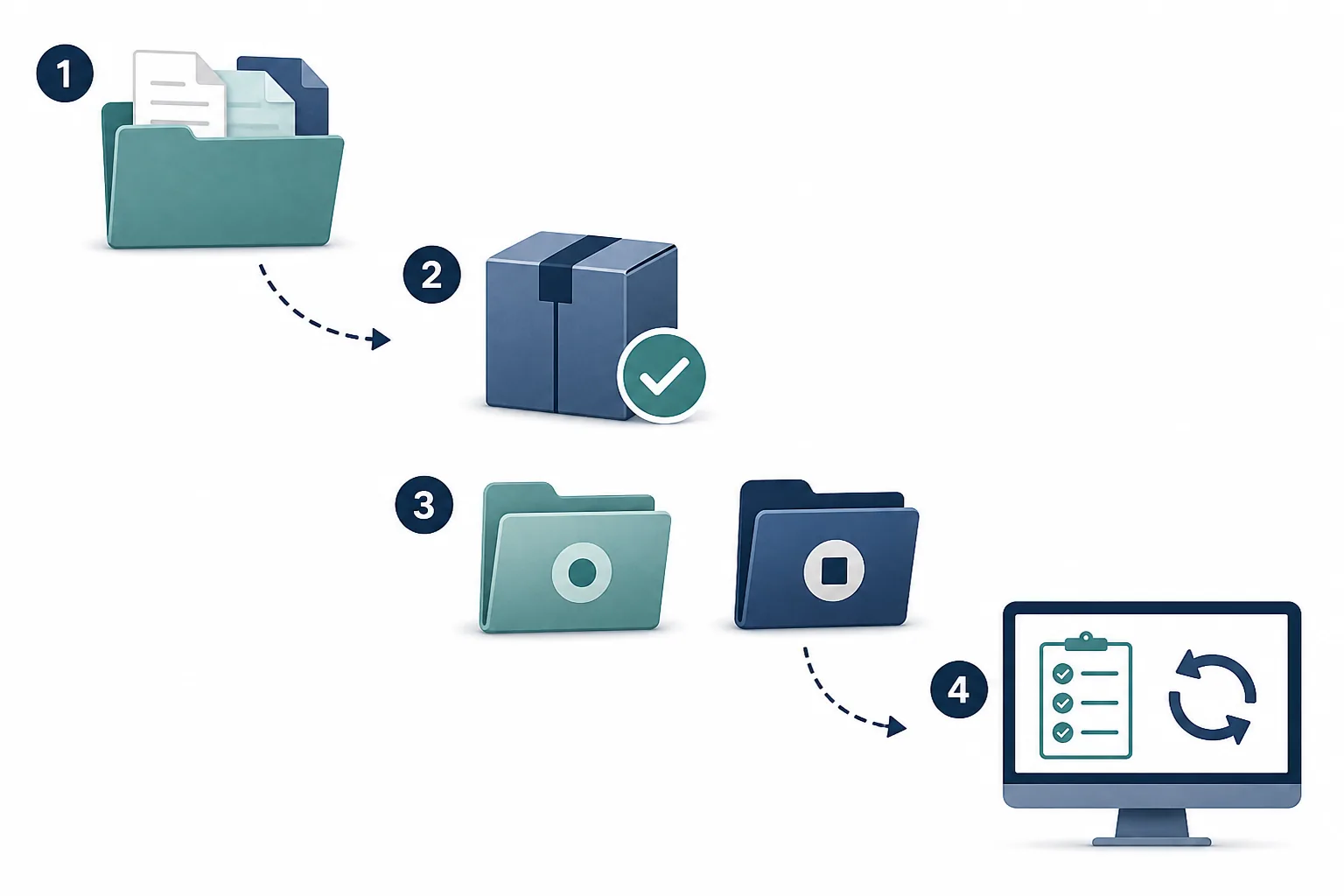
Platform notes for Windows, Linux, Steam Deck, and mobile
Windows users should check the native build and GPU driver before adding Steam Input, capture software, remote desktop, or an overlay. Linux and Steam Deck users should record whether the failure appears in Desktop Mode, Gaming Mode, or both, and whether the Vulkan driver and AppImage permissions are correct. Apple and mobile users have additional package, sandbox, and display permissions, so desktop paths should not be copied into an app container.
Across platforms, the same boundary helps: first prove that the official build can create a graphics surface, then add fullscreen, a higher resolution, custom files, and wrappers one at a time. If the issue is limited to a window or aspect ratio after the surface works, use the fullscreen guide. If the surface works but input or save behavior fails, use the controller or save guide.
| Platform check | Record | Avoid |
|---|---|---|
| Windows | Architecture, vendor driver, API, monitor scaling | Treating a capture or remote-desktop surface as a clean GPU test |
| Linux / Steam Deck | Vulkan driver, compositor, mode, AppImage permission | Adding a Steam shortcut before the native window test passes |
| macOS | Apple silicon or Intel package and Metal path | Copying a Windows configuration or assuming a desktop data path |
| Android / iOS | Package architecture, sandbox, display permission, and current release | Using an inaccessible desktop folder or calling a mobile fallback universal |
Dusklight graphics backend FAQ
What should I do when Dusklight failed to initialize any graphics backend?
Confirm the release and architecture, remove overlays and remote-display layers, check the GPU driver, and test one supported API in a visible window. Keep the first error and backend name, and do not delete saves or game data as a first step.
What backend should I use with an NVIDIA graphics card for Dusklight?
Use the supported API exposed by your current operating system, driver, and Dusklight build. There is no universal NVIDIA choice. Compare one preferred backend with a clean baseline using the same scene, resolution, and window mode.
Why is Dusklight black in fullscreen but visible in a window?
That result points toward a display surface, monitor, compositor, scaling, or backend boundary rather than proof that game data is missing. Return to windowed mode, keep the same backend, verify the driver, and compare the same scene before changing other settings.
Can lowering resolution fix a graphics backend initialization error?
Lowering resolution can reduce workload after the backend launches, but it cannot create a graphics device that failed to initialize. First establish a clean backend launch, then change resolution once and compare the same scene.
Should I change graphics backend and driver at the same time?
No. Change one variable and record the old value. Updating the driver and changing the API together makes it difficult to know which change restored or broke the result.
Is the graphics backend guide a Dusklight download or GPU tool?
No. It is an informational troubleshooting article. It does not host Dusklight binaries, Nintendo game data, GPU drivers, or a tool that detects the best renderer automatically.
Sources checked on November 15, 2026: Dusklight settings source reference, Dusklight system requirements, TwilitRealm Dusklight repository.